
Free Guide: Get Your Beauty Business Showing on Google (Maps + Reviews). Google Business Profile optimisation is the fastest “set-and-leave” way for beauty & aesthetics practitioners to show up on Google Maps and build trust with photos and reviews. This free guide walks you through the exact steps to optimise your profile and connect it to your website so clients can find you and enquire.
This guide serves as a comprehensive guide to optimising your Google Business Profile.
Who this is for: beauty therapists, aestheticians, and mobile/home/clinic-based practitioners who provide in-person services.
Google Business Profile optimisation checklist
Use this Google Business Profile optimisation checklist to improve visibility, trust, and enquiries from Google Maps.
Table of Contents
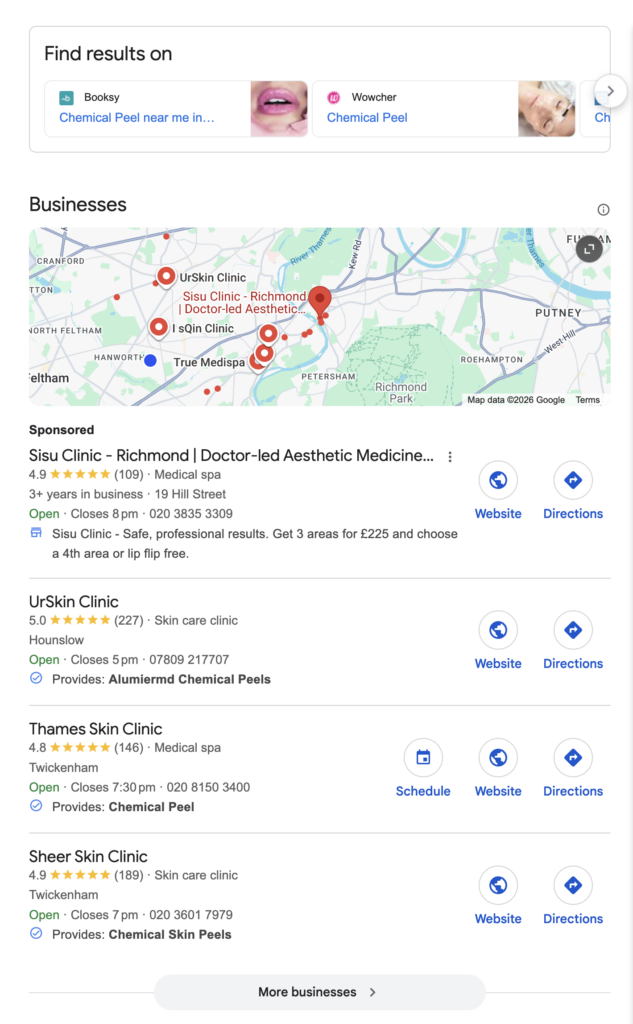
This is what you’re aiming for: local results with photos + reviews that clients trust.
What you’ll achieve in under an hour
- A Google Business Profile client can find on Search + Maps
- A listing that shows photos, services, hours, and reviews
- A shareable review link you can send to clients
- A clean connection between Google → your website → enquiries
Step 1: Create your Google Business Profile (10–20 mins)
- Search “Google Business Profile” on Google and start setup.
- Enter your business name (use the exact same name across website + socials).
- Choose your primary category (e.g. Beauty therapist / Skin care clinic / Aesthetics).
- Add your location or service area:
- Clinic/salon/home-based, and you want to show your address → add it
- Mobile (or you don’t want your address shown) → set a service area instead
Quick tip: Consistency matters. Use the same business name, phone number, and website everywhere.
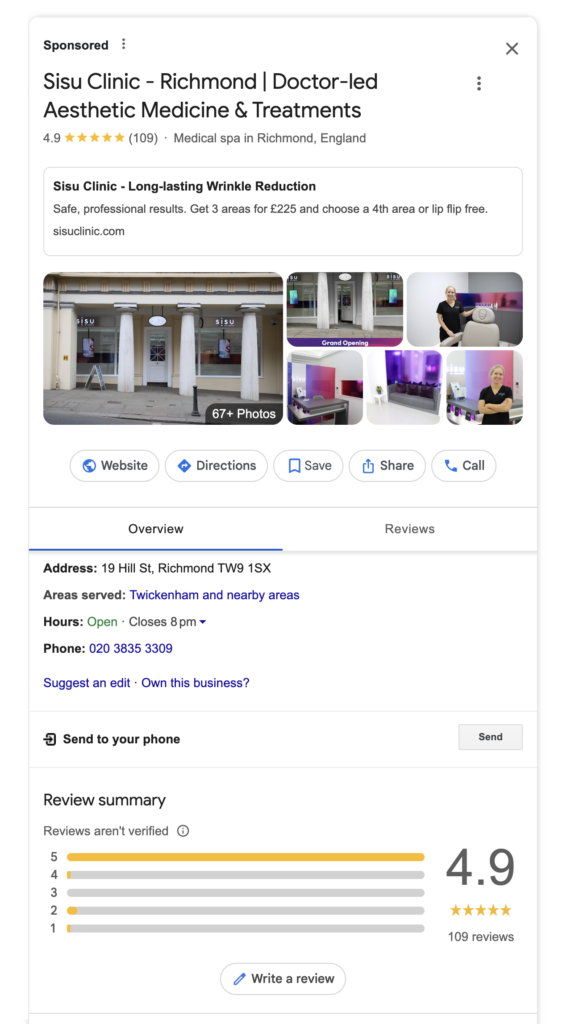
This is the panel clients look at before they decide to message or book.
Step 2: Verify your business (essential)
Google will ask you to verify your business (often via postcard, phone, or video).
Once verified, you can manage your profile fully — and you’re more likely to show in local results.
Step 3: Make your profile “trust-ready” (15 mins)
Complete these sections straight away:
✅ Business description (2–3 lines)
Use this simple formula:
What you do + who you help + what you specialise in + location/service area
Example:
“I provide advanced skin treatments for clients who want visible results, with a calm, professional experience. Specialising in [treatments]. Based in [area] and serving [areas].”
✅ Services/treatments list
Add your core treatments in clear, familiar wording (avoid overly technical names).
✅ Opening hours
Include evenings/weekends if that’s when clients can book.
✅ Photos (add 8–12 to start)
- Your treatment space/setup (clean + bright)
- You (professional and approachable)
- Product/treatment flat-lays
- Results (only if permitted and compliant)
- Your logo (optional)
Tip: Regularly adding photos is one of the easiest ways to keep your listing looking active.
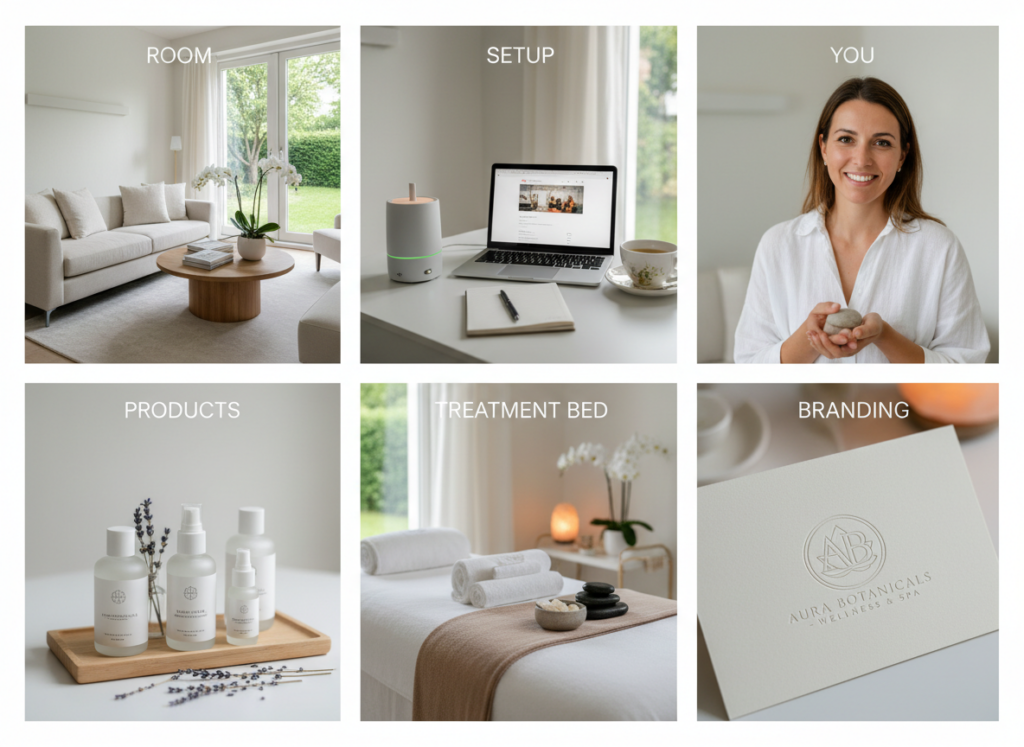
Photos are a trust signal — aim for clean, bright, professional images.
Step 4: Connect it to your WordPress website (5 mins)
This is where your website turns “Google interest” into enquiries.
On your Google Business Profile
- Add your website URL
- Add your phone number
- Add a booking/contact link (if you have one)
On your WordPress website
- Make your Contact page obvious (button in your menu)
- Add:
- your service area/location
- click-to-call phone number
- booking link (if you use one)
- a short “What to expect” section (reduces no-shows)
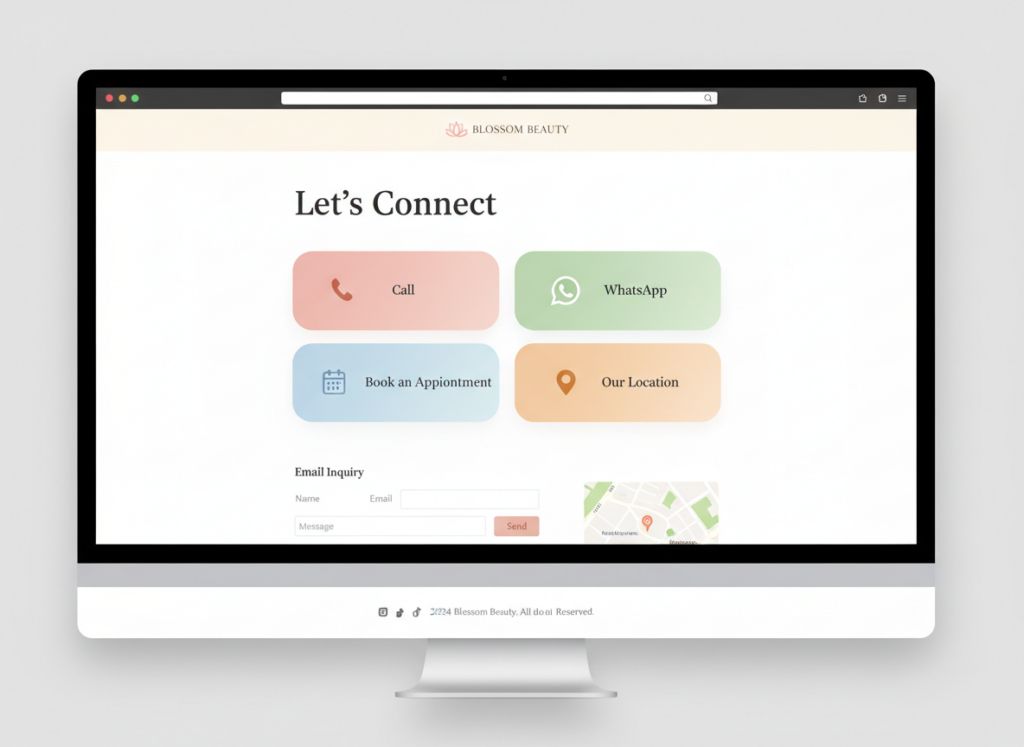
Make it easy for clients to take the next step.
Step 5: Get reviews the easy way (copy/paste scripts)
Once your profile is live, get your review link from your Google profile and send it to clients.
WhatsApp/SMS script
“Hi [Name], thank you again for coming in today. If you’re happy with your treatment, would you mind leaving me a quick Google review? It really helps new clients find me. Here’s the link: [link] Thank you so much.”
Reply-to-review template
“Thank you so much, [Name] — I really appreciate it. I’m glad you were happy with your treatment. Looking forward to seeing you again.”
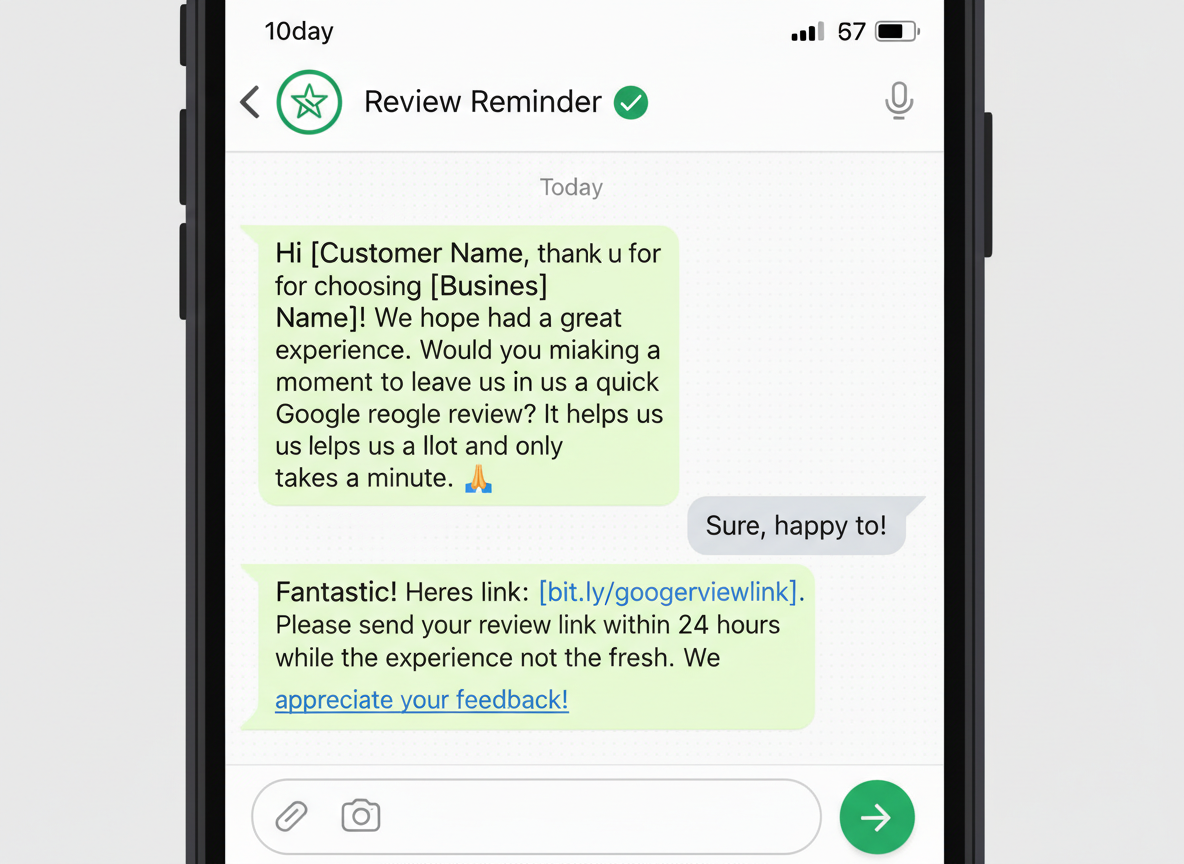
Send your review link within 24 hours while the experience is fresh.
Step 6: “Set & leave” upkeep (10 mins/week)
Reviews are a major ranking and trust signal, so Google Business Profile optimisation should always include a simple review routine.
- Reply to reviews (even short replies help)
- Add 1 photo weekly (or batch upload monthly)
- Update hours for holidays
- Optional: post one update monthly (offer, availability, new treatment)
That’s it — you’ve built a powerful trust layer clients can see in seconds.
Want the shortcut?
If you want a clinic-grade WordPress website that’s already structured for trust, enquiries, and professional presentation, you can use my SkinTherapy.io website system.
Disclaimer
This guide is designed for businesses offering in-person services (clinic, salon, home-based, mobile). Online-only businesses work differently.